RECORDING MULTI-CHANNEL
Go to Start, All Programs, Burwen Audio and click to open the Burwen Recorder-Player. Click OPEN, and select the destination folder and name for
your recording. Use the real-time SPEAKER-RECORD fader for fine volume adjustment of both the AUDIO SPLENDOR output and the record level.
Normal recording is 5.1 channels at 88200 Hz, 32-bit floating point, (127 MB/min limited to 4 GB, 31.4minutes), but saving as W64 (127 MB/min)
eliminates this limitation. The Burwen Recorder records exactly what you hear as set in Options and AUDIO SPLENDOR.xls. Both the Burwen
Recorder-Player and WMP can play MP3, WMA, and WAV files via the MOTU 828MK3. The Burwen Recorder-Player will play W64 files.
HIGH SPEED FILE CONVERSION
Convert WAV, WMA, MP3, or W64 files to any of these AUDIO SPLENDOR processed formats by dragging and dropping one or more files or a folder
full onto the Burwen Recorder-Player. In the dialog box that appears, select the type of file, bit rate, and number of channels, and select a destination.
Processing is set by a Preset file, C:\BURWEN AUDIO\BACKUPS\SOUND.bin, produced every time you click the SOUND button. Copy and paste
SOUND.bin for future use to the same destination and change its name (keep .bin) to associate it with the music file.
BURWEN PLAYBACK
OPEN the file you want to hear. Checking CHAIN FILES plays the selected file and those below in the same folder. Change the PLAY VOLUME with the
slider. ALT + the underlined letter operates the control from the keyboard provided the Burwen Recorder-Player window has focus (recently clicked on).
After pressing ALT + V hold down the left or right arrow keys for smooth PLAY fades. ALT + D and the arrow keys produce smooth record fades.
BACKUP YOUR FILES
Every time you make a new entry in a library press CTRL + S to save it. Backup your libraries after just a few or every entry. Simply push BKUP at
TONE CTRL, Pg Dn. All three library files will be saved and renamed copies will appear in C:\BURWEN AUDIO\BACKUPS with the word “BACKUP”
added into each name. To restore any of the library files in C:\BURWEN AUDIO by copying and pasting from C:\BURWEN AUDIO\BACKUPS rename it
to remove “BACKUP” after pasting.
AUDIO SPLENDOR.xls should be saved with settings you want the next time you open the workbook, Click SAVE WORKBOOK at TONE CTRL, Pg Dn.
Copy C:\BURWEN AUDIO\ AUDIO SPLENDOR.XLS and paste in C:\BURWEN AUDIO\BACKUPS. This file can also be restored from the installation disc.
USE WITH WINDOWS MEDIA PLAYER
Open the Windows Media Player by inserting a music CD in your CD-ROM drive or by double clicking its icon. Go to the menu item View, Plug-ins,
Other, and click to place a checkmark at either Burwen Output or Burwen Bobcat. When checked the Burwen Bobcat window will open. If Burwen
Output is checked, click PROCESS AUDIO to connect with WMP.
In each of your Library categories such as Album, Composer, Artist, etc. after selecting your music, right click on the right title bar and select from the list
of fields, more, “Subtitle”. It is a good idea to place the Subtitle high in the list and include the File Path at the end. Typing a unique Subtitle of 5 or more
letters and numbers and then saving the same subtitle in the TONE LIB allows WMP to automatically recall the library settings when you select the track.
CALCULATION
Because of the immense number of calculations involved, real time operation of the controls is not practical without a super computer. The SPEAKER-
RECORD fader on the Burwen Recorder-Player is the only real-time control. It controls all output channels. To avoid jerky TONE CTRL slider operation,
Excel calculation is held off until you release the left mouse button after moving a control, when you see an hourglass.
If you use Excel for accounting or other uses press F9 when you need calculation. If AUDIO SPLENDOR is closed or not touched you can set Excel
calculation at Automatic at Tools, Options, Calculation. The first time you operate a control, calculation will switch to manual.
Go to Start, All Programs, Burwen Audio and click to open the Burwen Recorder-Player. Click OPEN, and select the destination folder and name for
your recording. Use the real-time SPEAKER-RECORD fader for fine volume adjustment of both the AUDIO SPLENDOR output and the record level.
Normal recording is 5.1 channels at 88200 Hz, 32-bit floating point, (127 MB/min limited to 4 GB, 31.4minutes), but saving as W64 (127 MB/min)
eliminates this limitation. The Burwen Recorder records exactly what you hear as set in Options and AUDIO SPLENDOR.xls. Both the Burwen
Recorder-Player and WMP can play MP3, WMA, and WAV files via the MOTU 828MK3. The Burwen Recorder-Player will play W64 files.
HIGH SPEED FILE CONVERSION
Convert WAV, WMA, MP3, or W64 files to any of these AUDIO SPLENDOR processed formats by dragging and dropping one or more files or a folder
full onto the Burwen Recorder-Player. In the dialog box that appears, select the type of file, bit rate, and number of channels, and select a destination.
Processing is set by a Preset file, C:\BURWEN AUDIO\BACKUPS\SOUND.bin, produced every time you click the SOUND button. Copy and paste
SOUND.bin for future use to the same destination and change its name (keep .bin) to associate it with the music file.
BURWEN PLAYBACK
OPEN the file you want to hear. Checking CHAIN FILES plays the selected file and those below in the same folder. Change the PLAY VOLUME with the
slider. ALT + the underlined letter operates the control from the keyboard provided the Burwen Recorder-Player window has focus (recently clicked on).
After pressing ALT + V hold down the left or right arrow keys for smooth PLAY fades. ALT + D and the arrow keys produce smooth record fades.
BACKUP YOUR FILES
Every time you make a new entry in a library press CTRL + S to save it. Backup your libraries after just a few or every entry. Simply push BKUP at
TONE CTRL, Pg Dn. All three library files will be saved and renamed copies will appear in C:\BURWEN AUDIO\BACKUPS with the word “BACKUP”
added into each name. To restore any of the library files in C:\BURWEN AUDIO by copying and pasting from C:\BURWEN AUDIO\BACKUPS rename it
to remove “BACKUP” after pasting.
AUDIO SPLENDOR.xls should be saved with settings you want the next time you open the workbook, Click SAVE WORKBOOK at TONE CTRL, Pg Dn.
Copy C:\BURWEN AUDIO\ AUDIO SPLENDOR.XLS and paste in C:\BURWEN AUDIO\BACKUPS. This file can also be restored from the installation disc.
USE WITH WINDOWS MEDIA PLAYER
Open the Windows Media Player by inserting a music CD in your CD-ROM drive or by double clicking its icon. Go to the menu item View, Plug-ins,
Other, and click to place a checkmark at either Burwen Output or Burwen Bobcat. When checked the Burwen Bobcat window will open. If Burwen
Output is checked, click PROCESS AUDIO to connect with WMP.
In each of your Library categories such as Album, Composer, Artist, etc. after selecting your music, right click on the right title bar and select from the list
of fields, more, “Subtitle”. It is a good idea to place the Subtitle high in the list and include the File Path at the end. Typing a unique Subtitle of 5 or more
letters and numbers and then saving the same subtitle in the TONE LIB allows WMP to automatically recall the library settings when you select the track.
CALCULATION
Because of the immense number of calculations involved, real time operation of the controls is not practical without a super computer. The SPEAKER-
RECORD fader on the Burwen Recorder-Player is the only real-time control. It controls all output channels. To avoid jerky TONE CTRL slider operation,
Excel calculation is held off until you release the left mouse button after moving a control, when you see an hourglass.
If you use Excel for accounting or other uses press F9 when you need calculation. If AUDIO SPLENDOR is closed or not touched you can set Excel
calculation at Automatic at Tools, Options, Calculation. The first time you operate a control, calculation will switch to manual.
BURWEN BOBCAT AND BURWEN AUDIO
Do not be confused by the different modes of operation. The BURWEN AUDIO processing part of AUDIO SPLENDOR is actually 3 independent programs.
The first plugs into the Windows Media Player (WMP) and processes sound between WMP and your MOTU 828MK3 Audio Interface or sound card. It
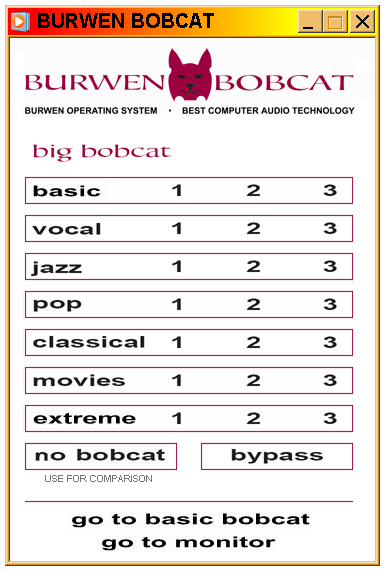
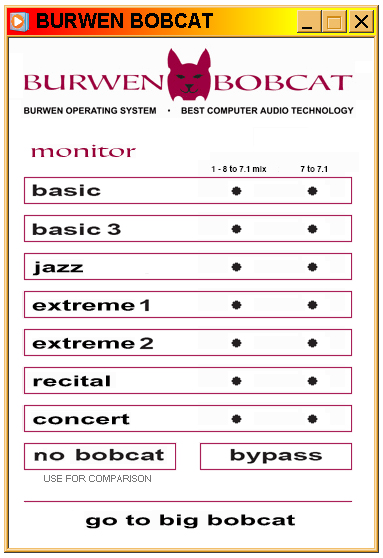
opens only from WMP, not the Start button. When open you have a selection of any of the 3 Bobcat windows below. Clicking a button produces
2-channel stereo sound in the Basic Bobcat and Big Bobcat windows. Clicking a button in the left column of the Monitor window produces multi-channel
output from 2-channel stereo sound files.
The second mode opens from the Start button and it processes sound between the 8 analog inputs and outputs of a MOTU 828MK3 Audio Interface. 3
windows like those below are available for fixed processing selections. They are actually different windows named BURWEN AUDIO. It is possible to
have both BURWEN AUDIO and BURWEN BOBCAT windows open at the same time, but this should be avoided because it strains computer resources
and is confusing. So when using BURWEN AUDIO, keep WMP closed. To play music files open the Burwen Recorder-Player by right clicking the
BURWEN AUDIO icon at the right of your Taskbar.
The third mode is as a DirectX plug-in for and audio editor program such as Sony Vegas or Sound Forge. Use the editor's plug-in chooser to select the
BURWEN BOBCAT FILTER. It will open a BURWEN BOBCAT window like below. Keep the other programs closed.
AUDIO SPLENDOR.xls can send new sounds either locally or via remote control to any one of these 3 Burwen programs. It has to be configured to send
to the correct address by checking the appropriate boxes at the bottom of the MIXER window.
Do not be confused by the different modes of operation. The BURWEN AUDIO processing part of AUDIO SPLENDOR is actually 3 independent programs.
The first plugs into the Windows Media Player (WMP) and processes sound between WMP and your MOTU 828MK3 Audio Interface or sound card. It
opens only from WMP, not the Start button. When open you have a selection of any of the 3 Bobcat windows below. Clicking a button produces
2-channel stereo sound in the Basic Bobcat and Big Bobcat windows. Clicking a button in the left column of the Monitor window produces multi-channel
output from 2-channel stereo sound files.
The second mode opens from the Start button and it processes sound between the 8 analog inputs and outputs of a MOTU 828MK3 Audio Interface. 3
windows like those below are available for fixed processing selections. They are actually different windows named BURWEN AUDIO. It is possible to
have both BURWEN AUDIO and BURWEN BOBCAT windows open at the same time, but this should be avoided because it strains computer resources
and is confusing. So when using BURWEN AUDIO, keep WMP closed. To play music files open the Burwen Recorder-Player by right clicking the
BURWEN AUDIO icon at the right of your Taskbar.
The third mode is as a DirectX plug-in for and audio editor program such as Sony Vegas or Sound Forge. Use the editor's plug-in chooser to select the
BURWEN BOBCAT FILTER. It will open a BURWEN BOBCAT window like below. Keep the other programs closed.
AUDIO SPLENDOR.xls can send new sounds either locally or via remote control to any one of these 3 Burwen programs. It has to be configured to send
to the correct address by checking the appropriate boxes at the bottom of the MIXER window.
PLAYING
- When playing your disc, or music file select the sound you like best. Basic, Vocal, Jazz, Pop, Classical, Movies, or Extreme are only suggested
starting points. In the Big Bobcat window try all 21 selections and compare to No Bobcat. - Choosing one of these will improve or degrade the sound depending upon how well the processing is matched to the problem. Use the one you like
best. Compare the sound with No Bobcat which is the same as Bypass but 5 dB softer. The lower level prevents overload due extreme low
frequency boost. - Clicking on the bobcat face at the top opens these instruction pages.
- If you are too busy to think about selections, click Go to Basic Bobcat to go the a small window with only 2 processing selections. The Basic and
Smooth selections have very little low frequency compensation, enabling the same level as Bypass. - In the Windows Media Player only, files previously processed by Burwen Bobcat automatically play in Bypass mode instead of your selection.
RECORDING CDS
Record CDs using the Windows Media Player’s Burn window. If the Burwen Bobcat window shows and you have selected one of the processing
selections the entire CD will have the Burwen Bobcat sound. For highest fidelity start with unprocessed .wma lossless files.
RIPPING CDS
Rip CDs to WMA compressed or WMA lossless (preferred) files using the Windows Media Player’s Rip window. If the Burwen Bobcat window shows and
you have selected one of the 19 processing selections the .wma file will have the Burwen Bobcat sound. For no processing, close Burwen Bobcat. To
make MP3 files use the Burwen Audio Converter below.
Important: In the Windows Media Player top menu item, Tools, Options, Library, do not check “Rearrange music in rip music folder, using rip music
settings” if you want your MP3s to appear in your chosen folder. If checked the MP3s will appear in the original music folder and the chosen folder may
disappear.
CONVERTING TO MP3 128 KBPS
Convert WMA or MP3 files to Burwen Bobcat processed MP3 128 kbps files using the Burwen Audio Converter. In Windows Explorer or My Computer,
pick up a number of individual files with the mouse, or a folder full of files, and drag and drop them on the Burwen Bobcat window. A dialog box will ask
you to select a destination folder. All the files will be automatically converted using the circled Burwen Bobcat process selection.
IDENTIFYING BURWEN BOBCAT PROCESSED FILES
In WMP a file processed by Burwen Bobcat has a subtitle “BURWEN BOBCAT B1” if processed using Basic 1. The last letter is the first letter of the
processing type, Basic, vocal, jazz, pop classical, or movies and the number indicates selection 1, 2, or 3.
In Windows Explorer or My Computer Burwen Bobcat Processed files are identified by a bobcat icon. On computers that do not have Burwen software
installed the icons will become visible if you install the utility, bobcatshell_inst.msi.
HELP AND SUPPORT
Burwen Technology, Inc.
12 Holmes Road
Lexington, MA 02420-1917
Websites: www.burwenaudio.com
www.burwenbobcat.com
Record CDs using the Windows Media Player’s Burn window. If the Burwen Bobcat window shows and you have selected one of the processing
selections the entire CD will have the Burwen Bobcat sound. For highest fidelity start with unprocessed .wma lossless files.
RIPPING CDS
Rip CDs to WMA compressed or WMA lossless (preferred) files using the Windows Media Player’s Rip window. If the Burwen Bobcat window shows and
you have selected one of the 19 processing selections the .wma file will have the Burwen Bobcat sound. For no processing, close Burwen Bobcat. To
make MP3 files use the Burwen Audio Converter below.
Important: In the Windows Media Player top menu item, Tools, Options, Library, do not check “Rearrange music in rip music folder, using rip music
settings” if you want your MP3s to appear in your chosen folder. If checked the MP3s will appear in the original music folder and the chosen folder may
disappear.
CONVERTING TO MP3 128 KBPS
Convert WMA or MP3 files to Burwen Bobcat processed MP3 128 kbps files using the Burwen Audio Converter. In Windows Explorer or My Computer,
pick up a number of individual files with the mouse, or a folder full of files, and drag and drop them on the Burwen Bobcat window. A dialog box will ask
you to select a destination folder. All the files will be automatically converted using the circled Burwen Bobcat process selection.
IDENTIFYING BURWEN BOBCAT PROCESSED FILES
In WMP a file processed by Burwen Bobcat has a subtitle “BURWEN BOBCAT B1” if processed using Basic 1. The last letter is the first letter of the
processing type, Basic, vocal, jazz, pop classical, or movies and the number indicates selection 1, 2, or 3.
In Windows Explorer or My Computer Burwen Bobcat Processed files are identified by a bobcat icon. On computers that do not have Burwen software
installed the icons will become visible if you install the utility, bobcatshell_inst.msi.
HELP AND SUPPORT
Burwen Technology, Inc.
12 Holmes Road
Lexington, MA 02420-1917
Websites: www.burwenaudio.com
www.burwenbobcat.com
 |
| |
 |
| |
 |
| |
 |
| burwenaudio.com |
| AUDIO SPLENDOR RECORDING AND PLAYING READ EACH STEP CAREFULLY |
| BIG BOBCAT 21 fixed outputs from AUDIO SPLENDOR for 2-channel stereo. |
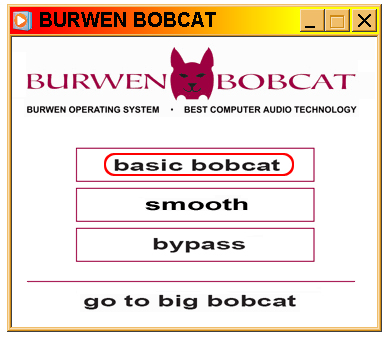
| BASIC BOBCAT For simplest listening and converting a library to processed MP3s for your iPod. |
| MONITOR 7.1 channels out from 2-channel stereo or 1 to 8 channels in. 3 simultaneous stereo channels for broadcasting. |